Group promo: promotion graphics in a row
The Group promo block shows one or more promotion graphics, each a link, such as the banners a group promotion organiser sends you to share with your readers. The graphic is the message, so there are no captions.
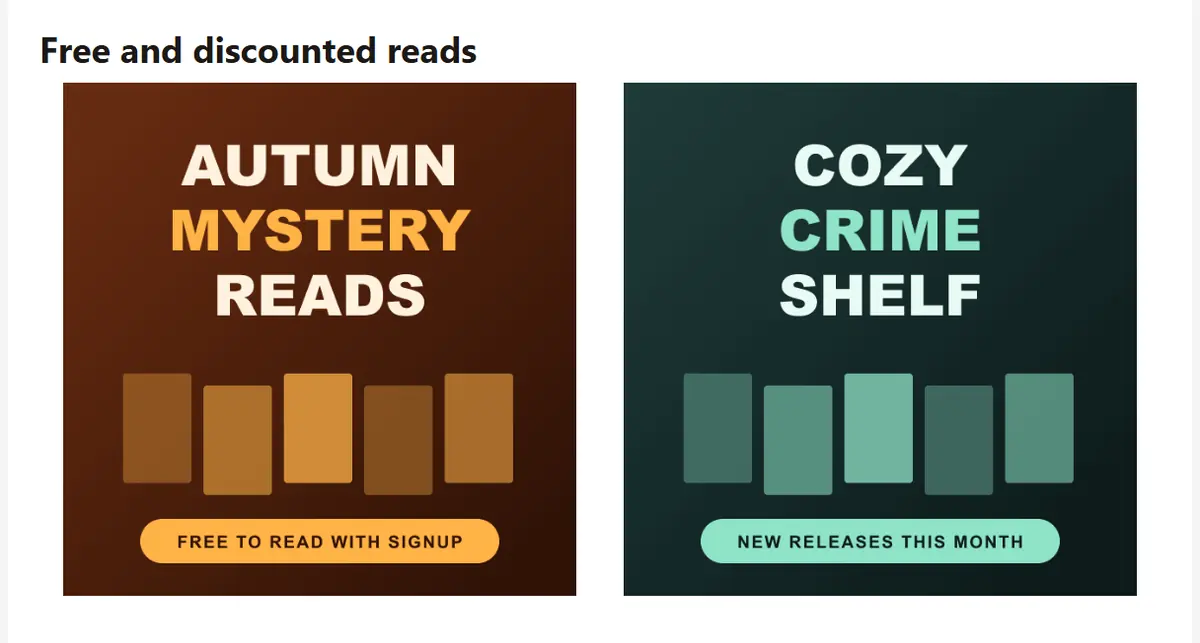
Adding a promotion
Click Add a promotion for each graphic. For each one:
- Promo graphic is the image. Upload the file the organiser gave you.
- Link is where a reader goes when they click it.
- Image description is what readers see if their email hides images. Make it say something, such as the name of the promotion.
A promotion with no image or no link is left out of the email rather than shown broken.
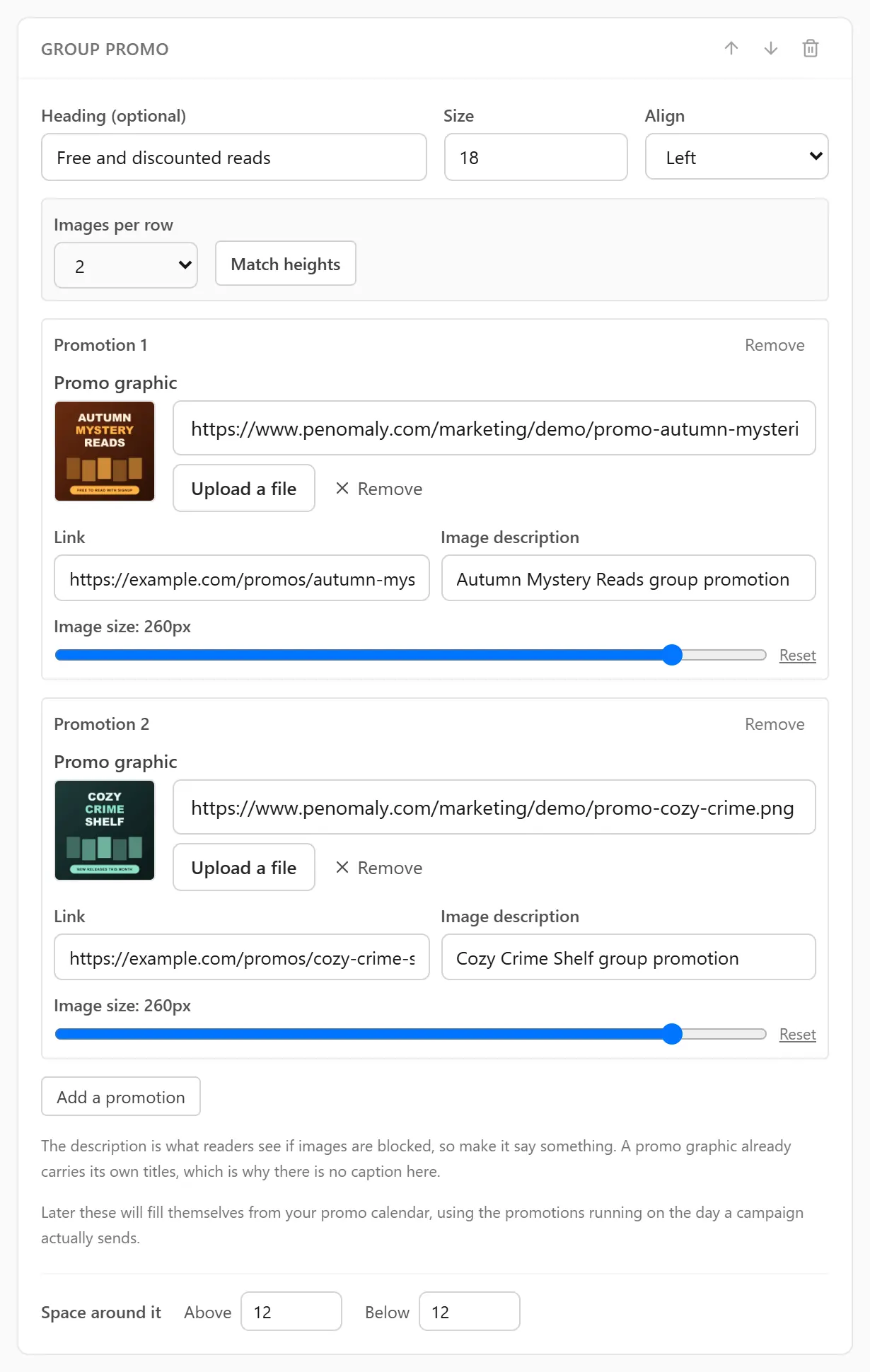
How many per row
Images per row sets 1, 2 or 3. Left on Automatic, the row holds as many as you have added, up to three, and a fourth starts a new row.
Choose 1 for a wide banner. A single graphic fills the width of the email, which is what most banners are designed for.
On a phone the graphics stack one above another.
Image size
Each promotion has its own Image size slider. Left alone it reads (automatic) and the graphic fills its column. Reset puts it back to automatic.
The largest a graphic can go depends on how many share the row: 588 pixels for one, 288 for two, 192 for three.
Match heights
Graphics from different organisers rarely share a shape. Press Match heights and Penomaly looks at the real shape of each image and sets their sizes so they all come out the same height. Nudge any of them with its slider afterwards if you like.
It works by setting widths, never heights, because a fixed height on an image stretches it in some versions of Outlook.
Group promo or Mentions?
Use Group promo when the image already carries its own titles and branding. Use Mentions when you want a book cover with its title, author and a short description underneath.