Landing pages
A landing page is a web page with a signup box on it. You put the link in the back of a book, in your bio, or in a post, and readers who follow it join your list without leaving their phone.
Every page has a public address of the form penomaly.com/p/your-page-name. The address is made from the name you give the page and does not change when you rename it later.
Making one
Open Landing Pages and press New page. You need three things: a name for your own use, the list signups should go to, and the pen name readers see. Only the name is required at this point, but a page cannot go live without a list, because a signup box with nowhere to put people would lose every reader who used it.
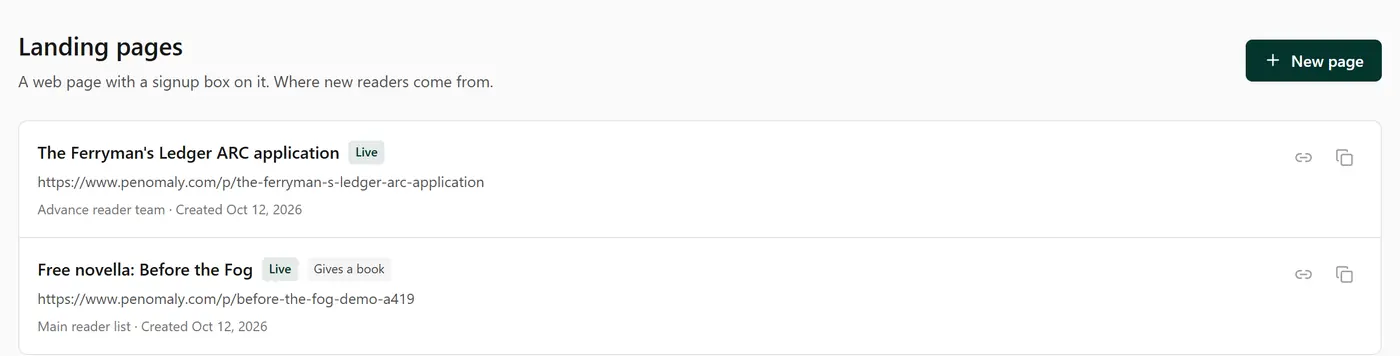
Press Design the page to add the content. It is the same editor you use for campaigns, so the blocks are the ones you already know. A page needs at least a Signup form block; without one there is nothing for a reader to do.
The two screens
Every page is two screens, switched with the tabs at the top of the editor.
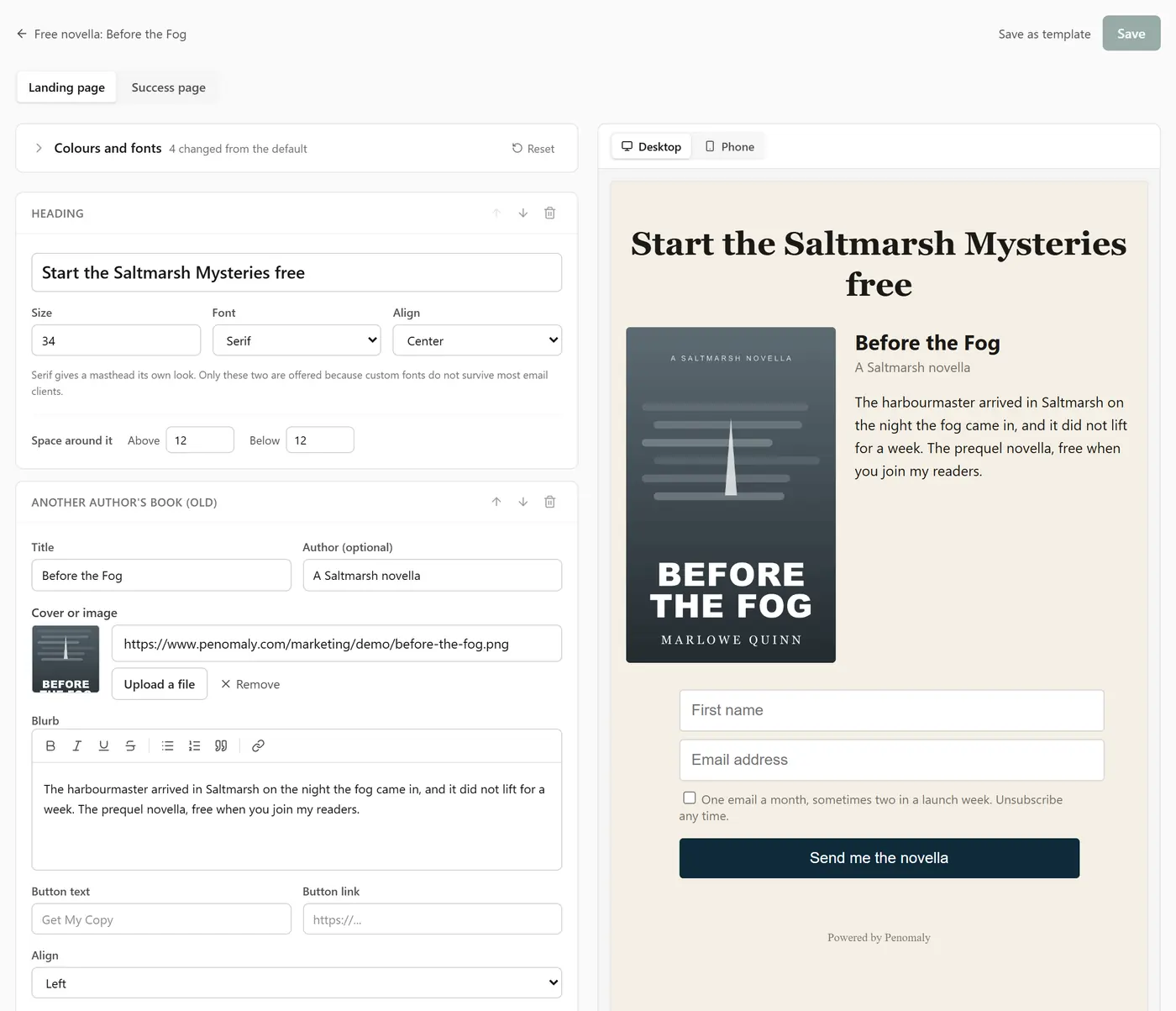
Landing page is what a reader sees first: your heading, what they get, and the signup box.
Success page is what they see once they are finished. On a list that does not confirm by email, that is straight after they sign up. On a list that does, it is after they click the link in the confirmation email. Either way it is the screen where the book is handed over.
You do not have to write a success page. Leave it alone and readers get a plain thank-you.
Giving away a book
Penomaly does not host your book. Paste the download link from BookFunnel, BookSprout, StoryOrigin or wherever you deliver files, and Penomaly sends readers to it.
There are two ways to do it and you only need one.
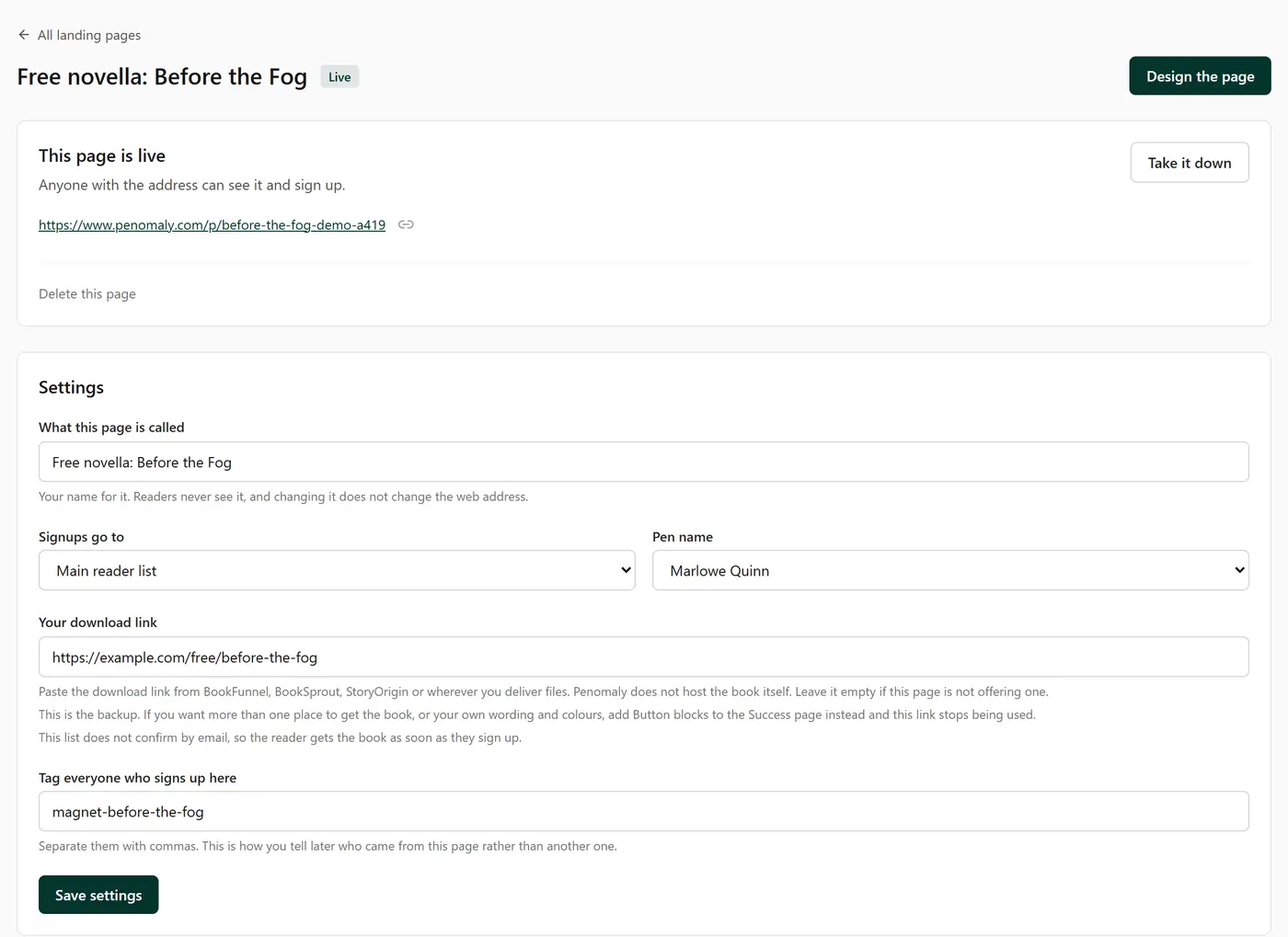
The simple way. Put the link in Your download link on the page's settings screen. A download button is added to your success page automatically. You cannot delete it by accident, which is the point.
The controlled way. Add Button blocks to your success page instead. Each one has its own text, its own link and its own two colours, so a book you give away through BookFunnel and BookSprout gets a button for each, and a reader can tell them apart. Use Buttons side by side to put them on one line. They stack on a phone whatever you choose, because two buttons squeezed side by side on a small screen are harder to tap than two stacked ones.
As soon as one of your own buttons has a real link in it, the automatic button switches off so readers do not see the same book offered twice. The link in Settings stays as a backup for if you remove them.
When the reader gets the book
On a list that confirms by email, after the click, never at signup. That is deliberate. It protects the book from anyone typing an address that is not theirs, and "confirm to get your book" is the single best reason a reader has to actually click.
On a list that does not confirm, they get it straight away, because there is nothing to wait for.
Asking for more than an email address
The signup form always asks for an email address, and optionally a first name. Anything else is up to you.
In the Extra questions panel on the Signup form block, press Add a question and type what you want to ask. That is all there is to it. An ARC application might ask for an Amazon reviewer name and a Goodreads profile link. A launch team page might ask what they read last. Each question can be marked required.
What you type is both what the reader sees and where the answer is filed. Ask for "Amazon reviewer name" on a second page and it lands in the same place as the first, so your export has one column rather than two nearly identical ones. As you type, names you have used before are suggested.
Nothing is added to your account while you are typing. The places your answers are stored are created when you press Publish, so half-written questions and changes of mind leave nothing behind.
A question cannot be called Email, Name, First name, Last name or Unsubscribe. Those are either asked already or are used to personalise your emails. If you name one of those, the editor tells you and that question simply will not collect anything.
The answers come out in your CSV export beside everything else, so you can sort your ARC team by who gave you a reviewer name.
Renaming or deleting one of these is on the Settings page, under custom fields, where you can see the whole list at once.
Making people agree to something
The Agreement text box on the Signup form block puts a tick box under the form that a reader has to tick before they can sign up. It is the right place for an ARC agreement: that the copy is unedited, that it is not to be shared, whatever you need them to accept.
It is a real requirement, not a paragraph they can skip past.
Spam
Every signup form carries a hidden field that only automated form-fillers can see, and anything that fills it in is quietly ignored. There is nothing to switch on and readers never see it.
Signups are also rate limited by network, so one machine cannot flood your list from a single address.
Tags
Anything you type in Tag everyone who signs up here is added to every reader who joins through that page. It is how you tell later who came from the reader magnet and who came from the ARC application, without needing two lists.
How many pages you can have
Drafts are unlimited on every plan. Build as many as you like.
The free plan publishes one page at a time. Take one down and you can put another up; any paid plan removes the limit. Every paid plan includes every feature, so the only difference between them is how many subscribers you have and how much you send.
Every Penomaly page carries a small Powered by Penomaly line at the bottom. It is on every page on every plan, and it is how other authors find out where your page came from.
Going live, and coming back down
A page is a draft until you press Publish. A draft is invisible: its address returns "page not found" for everybody, including you.
Take it down turns it back into a draft and keeps the address, so you can put it back up later on the same link. Deleting is different: the address stops working permanently, and any link you have already shared stops working with it. Readers who signed up through a deleted page keep their place on your list.
Templates
Start from on the New page form offers three ready-made pages, and any you have saved yourself.
Reader magnet signup asks for an email, then sends the reader to your own download link. ARC team application asks the extra questions a review team needs and has the delivery buttons already laid out. Newsletter signup offers no book at all, for readers who just want to hear about the next one.
Choosing one fills in both screens. Everything in it is yours to change, and changing it affects nothing else: a page made from a template holds its own copy from the moment it is created.
Saving your own
Once you have built a page you like, press Save as template at the top of the editor and give it a name. It is offered on the New page form from then on.
What is saved is the design of both screens: the blocks, the words, the images, the buttons, the colours, the font and the width. What is not saved is the list, the tags and the delivery link, because those belong to one particular page and a template that carried them would put readers somewhere you did not intend.
Campaigns work the same way. There are no ready-made campaign templates on purpose: a newsletter's shape is your voice, and a generic one would either be ignored or make every author's newsletter look alike. Save your own from a newsletter you liked writing, and the next month starts there. A campaign template carries the design only, never the subject, list or tags, so it can never send to the wrong people.
Your saved templates are listed on Settings, where you can delete ones you no longer want. Deleting a template removes a starting point, never the work: every campaign and page made from it is untouched.
Copying a page
The copy button on the list makes a new draft with everything from the original: the content, the success page, the list, the tags and the book link. It gets its own new address, because two pages cannot share one, and it starts as a draft so nothing goes live at an address you have not looked at yet.
A second reader magnet page usually starts as the first one with the book swapped.
Social links as icons
The Where else to find you block can show words or icons, chosen in How they look on the block.
Words are the default and survive image blocking, which a real share of readers have switched on. White icons are for a dark background and Dark icons for a light one. There are two colours rather than a colour picker because an image cannot be recoloured inside an inbox, so the file itself has to be the right colour before it is sent.
If a reader has images off, an icon falls back to the platform's name, which is why the words are the safe choice and the icons are the good-looking one.
Your own website has no logo to use, so it stays a word whichever you pick.
Set them once
Put your accounts in Settings, under your pen name, in Where readers can find you. Any social block with Use the links saved on my pen name ticked then uses them, and that is ticked by default on every block you add.
Change a link there and every draft campaign and every landing page follows it. Campaigns you have already sent never change, because what went out is the record of what went out.
If one campaign needs a different set, untick the box on that block and type them in. A second pen name keeps its own accounts.
Which platforms
The dropdown is grouped: Social (Facebook, Instagram, Threads, X, Bluesky, TikTok, YouTube, Pinterest, LinkedIn, Twitch, Tumblr, Mastodon, Reddit, Discord, Snapchat), Reading and reviews (Goodreads, BookBub, The StoryGraph, Wattpad, Royal Road, Substack, Medium), Where to buy (Amazon, Apple Books, Kobo, Barnes & Noble, Google Play, Audible, Spotify, Smashwords), Support me (Patreon, Ko-fi, Buy Me a Coffee, Kickstarter), and Other.
Anything else is the last option. Type what to call it and paste the link, and it renders as a word beside your icons. Use it for a podcast, a Discord invite, a newer platform, anything not on the list.
A few render as words rather than icons: Amazon, Apple Books, Barnes & Noble, Smashwords and Royal Road. The icon set Penomaly builds from does not carry those marks, and putting up something that merely looks like one would be worse than the word. They still link exactly the same way.
Two things that do not work on a page
Merge tags. {{first_name}} works in a campaign because you already know who you are writing to. A landing page is read by a stranger who has not told you their name yet, so the tag would show as typed. The preview warns you if you leave one in.
A signup box on the success page. The reader has already signed up by the time they see it. The preview warns you about that too.
If the signup box stops working
A live page whose list has been deleted or cleared shows Signups are off on the Landing Pages list, and the signup box on the page renders as a greyed-out placeholder rather than a form that quietly loses people. Choose a list again in Settings to switch it back on.