Your time zone
Penomaly uses your time zone to send scheduled emails at the time you meant, and to show dates and times across the app. When you schedule an email for 9:00, it goes at 9:00 where you are.
Setting it
Penomaly picks up the time zone your computer is set to the first time you use it. To check or change it, open Settings and find Time zone. Choose from the Your time zone list and press Save. You will see "Saved. Times now show in" followed by your zone.
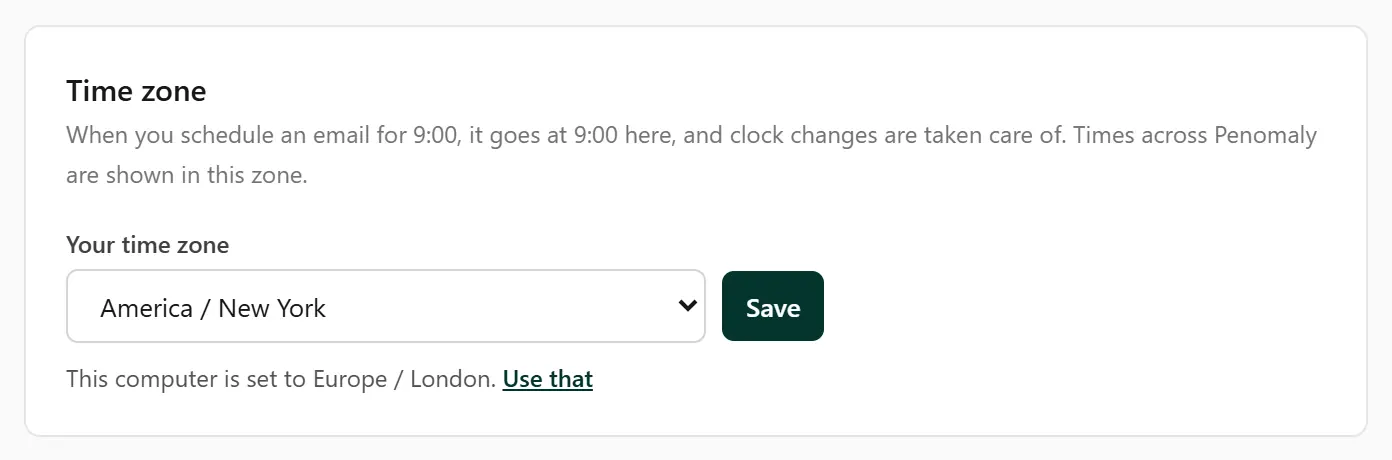
Zones are listed by region and city, such as America / Chicago or Europe / London. Pick the city that shares your clocks, not just your hour today: a city follows its own daylight saving rules, which is what lets Penomaly handle clock changes for you.
If you are travelling and your computer is set to a different zone, Settings says so and offers Use that. Penomaly never switches your zone on its own once it is set.
Scheduling a campaign
On a campaign, choose Schedule, pick the date and time under When, and press Schedule it. The time is read in your time zone, and the screen tells you which one, with a link to change it. The confirmation shows the exact day, time and zone it will go.
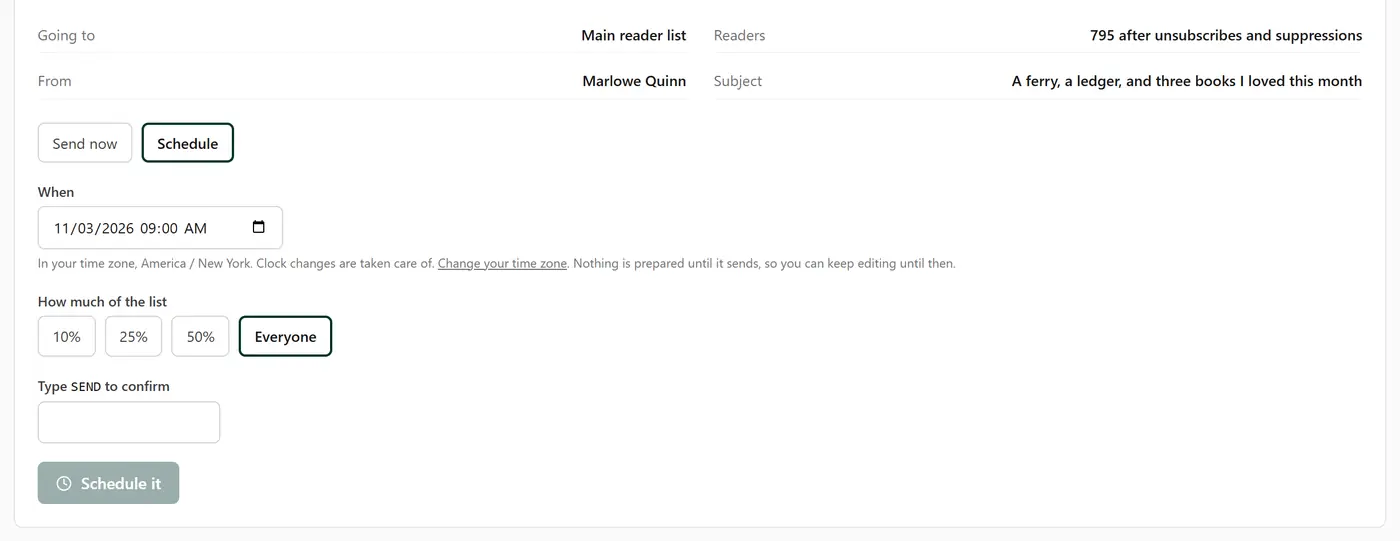
Until it sends, you can keep editing the campaign, or press Cancel the schedule.
When the clocks change
You do not need to do anything. Penomaly works out the time on the day the email is due to go, not the day you scheduled it. Schedule an email for 9:00 on a date after the clocks go back and it still goes at 9:00 on that day, even though the difference from UTC has changed in between.
On the night the clocks spring forward, a time that does not exist, such as 2:30 in many places, goes an hour later instead. Avoid scheduling in the small hours of a clock-change night and this never comes up.
Changing your zone after scheduling
A scheduled email is saved as a fixed moment. If you change your time zone afterwards, the email still goes at the same moment; only the way the time is shown changes. If you moved and want it to go at 9:00 in your new zone, open the campaign, press Cancel the schedule, and schedule it again.
Where else it is used
Dates and times on your campaigns, reports, dashboard and lists are shown in your time zone, with the zone named so there is no guessing.
Automations are the exception. A Wait until a date step has its own time zone box on the step itself, so check it there.